Your progress is saved in this browser.
Before you start
- A powered-on charged phone
- The built-in Clock app
- Time for a short test
Follow one step at a time.
Try the step, then choose Done — next step. You can go back or pause.
5 steps
Set and test a phone alarm
Step 1 of 5: Open Alarm in Clock
Find Clock and its Alarm area. Existing alarms may be listed with switches beside them. Choose the add or plus control to create a new alarm, rather than editing an important existing one by mistake.
✓ Step complete.
Step 2 of 5: Set the right time
Choose a time a few minutes ahead for practice. Check AM or PM if the phone uses a twelve-hour clock. Confirm the displayed hour and minute before proceeding; a wrong half of the day can be easy to miss.
✓ Step complete.
Step 3 of 5: Choose repeat and label
Select repeat days only if you want a recurring alarm. Give the practice alarm a clear label such as Test. Review the selected days rather than assuming that an alarm automatically repeats every morning.
✓ Step complete.
Step 4 of 5: Choose sound and save
Pick an audible sound and check the relevant alarm volume. Avoid None or Silent for a sound test. Save or confirm the alarm if the app requires it, and verify its switch is on in the alarm list.
✓ Step complete.
Step 5 of 5: Test, then remove the practice alarm
Wait for it to ring, then use Stop or Dismiss. Snooze delays an alarm instead of finishing it. Turn off or delete the test afterwards. Keep the phone powered on unless its manufacturer explicitly supports alarms while switched off.
✓ Step complete.
Next marks this step done.
You’ve finished this guide.
You can practise again anytime.
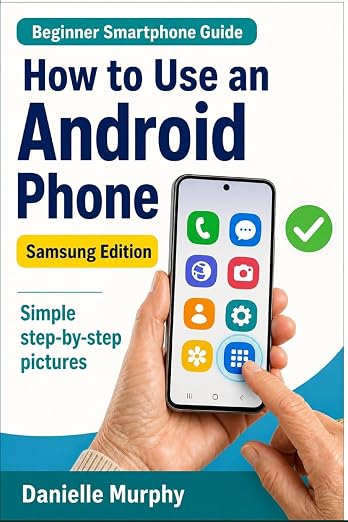
Prefer these instructions on paper?
100 lessons in 10 sections, with large screenshots and highlighted controls.
See book and sample pagesPractice task
Create a test alarm a few minutes ahead, hear it, stop it and remove it.
Marking steps done saves progress; it does not check your device.
Questions
Does silent mode affect my alarm?
iPhone Clock alarms ignore Silent and Do Not Disturb with an audible sound selected. Android settings vary; test the sound and volume.
Official help
Menus vary by model and software version.