Your progress is saved in this browser. There’s no timer.
Before you start
- Unlock your phone that is already set up and open a screen you find difficult to read.
- Remember the starting slider position so you can return to it if needed.
Follow the pictures, at your own pace.
Read the short instruction and look at the red outline. Try it on your phone. Choose I’ve done this when you are ready to move on. You can go back at any time.
A computer, tablet or printed copy beside your phone can make this easier. If you use the same phone, keep this page open and return to it after each step.
How do I come back to this guide?
You can leave this page open while you try the step. Come back to the guide before moving on.
If your phone has three buttons at the bottom: tap the Recent apps button, usually three short lines. Tap the preview of the browser where you opened Plaintech.
If there are no buttons: slide your finger up from the bottom edge and hold for a moment. Lift your finger when the app previews appear, then tap your browser preview.
If switching feels awkward, open this guide on a computer or tablet beside your phone, or print the picture steps.
6 steps · Your own pace
Make text bigger on a Samsung phone
Try the steps on your own phone. Red outlines in these book pictures show where to look; your screen may differ.
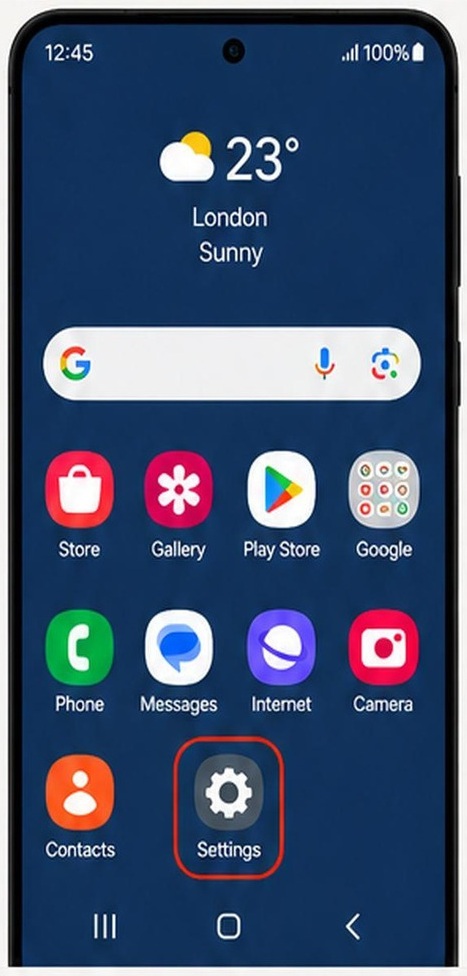
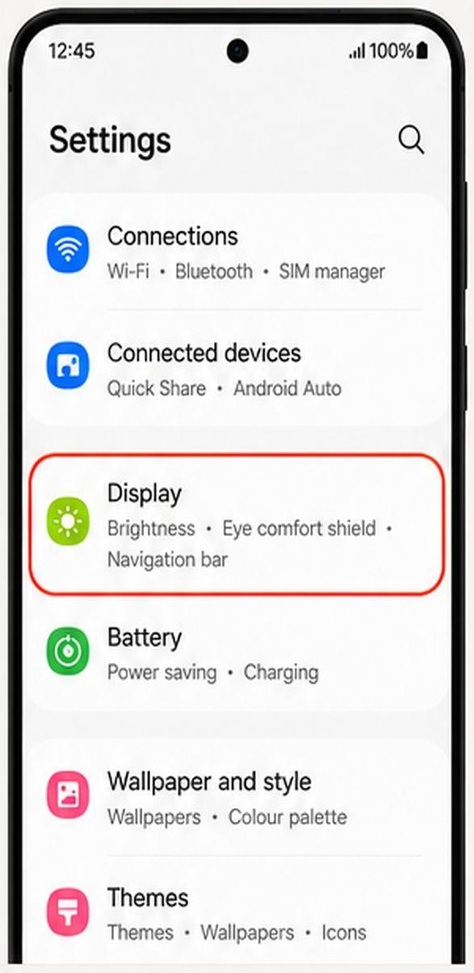
Step 1 of 6: Open Display settings
- Tap Settings. Look for the cog-shaped icon.
- In Settings, tap Display.
What to look forLook for the Display settings page.
My screen looks different
The pictures are examples from the book. Your phone may use a different layout or colour.
If you cannot find Display, use the search at the top of Settings. Search for Font size and open the matching setting.
You can use the guide’s Back button to check the previous step. Take a break if you cannot find the control; you do not have to guess.
How do I come back to this guide?
You can leave this page open while you try the step. Come back to the guide before moving on.
If your phone has three buttons at the bottom: tap the Recent apps button, usually three short lines. Tap the preview of the browser where you opened Plaintech.
If there are no buttons: slide your finger up from the bottom edge and hold for a moment. Lift your finger when the app previews appear, then tap your browser preview.
If switching feels awkward, open this guide on a computer or tablet beside your phone, or print the picture steps.
✓ Step complete. You can practise it again.
 Enlarge picture
 Enlarge picture
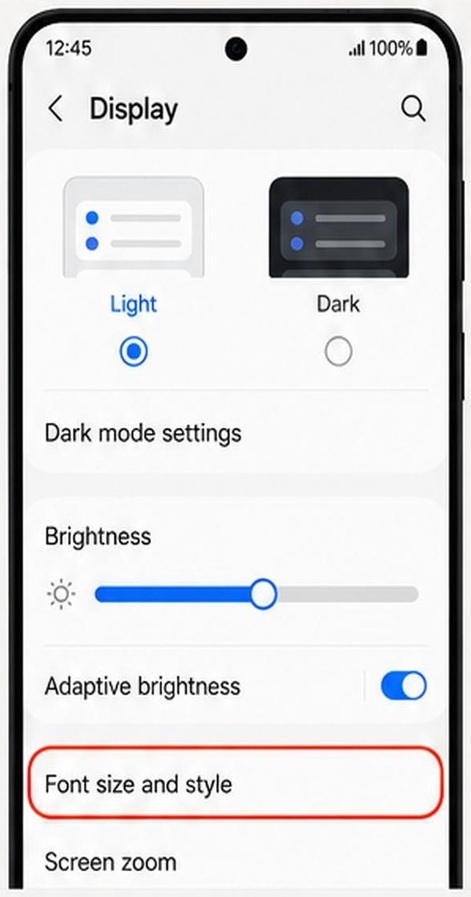
Step 2 of 6: Find the font control
Tap Font size and style.
What to look forLook for a size slider and some sample text.
My screen looks different
The pictures are examples from the book. Your phone may use a different layout or colour.
Some phones call this Font size or Font and screen zoom. You can also search Settings for Font size.
You can use the guide’s Back button to check the previous step. Take a break if you cannot find the control; you do not have to guess.
How do I come back to this guide?
You can leave this page open while you try the step. Come back to the guide before moving on.
If your phone has three buttons at the bottom: tap the Recent apps button, usually three short lines. Tap the preview of the browser where you opened Plaintech.
If there are no buttons: slide your finger up from the bottom edge and hold for a moment. Lift your finger when the app previews appear, then tap your browser preview.
If switching feels awkward, open this guide on a computer or tablet beside your phone, or print the picture steps.
✓ Step complete. You can practise it again.
 Enlarge picture
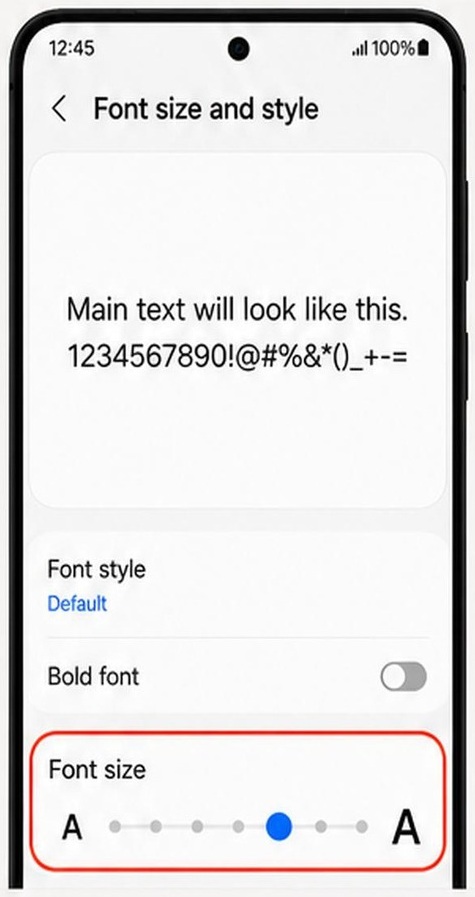
Step 3 of 6: Make the text a little bigger
Slide the dot a little to the right, towards the larger A.
What to look forRead the sample text above the slider. It should look larger.
My screen looks different
The pictures are examples from the book. Your phone may use a different layout or colour.
The dot may be a different colour on your phone. Move it a little more if needed. If an Apply button appears, tap it to keep the change.
You can use the guide’s Back button to check the previous step. Take a break if you cannot find the control; you do not have to guess.
How do I come back to this guide?
You can leave this page open while you try the step. Come back to the guide before moving on.
If your phone has three buttons at the bottom: tap the Recent apps button, usually three short lines. Tap the preview of the browser where you opened Plaintech.
If there are no buttons: slide your finger up from the bottom edge and hold for a moment. Lift your finger when the app previews appear, then tap your browser preview.
If switching feels awkward, open this guide on a computer or tablet beside your phone, or print the picture steps.
✓ Step complete. You can practise it again.
 Enlarge picture
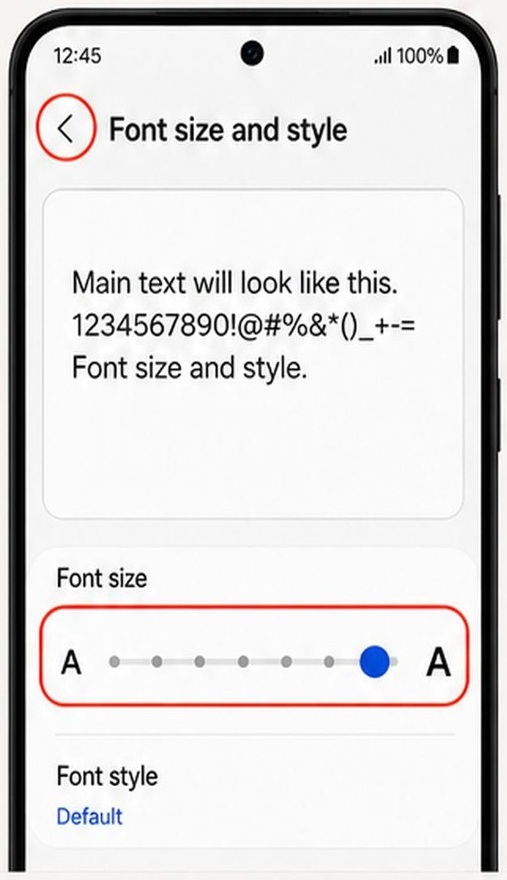
Step 4 of 6: Check if it is comfortable
Tap the Back arrow on your phone to leave the font-size screen.
What to look forRead the text on the Settings page. Is it comfortable for you?
My screen looks different
The pictures are examples from the book. Your phone may use a different layout or colour.
If the text is too big, open Font size and style again and move the dot a little to the left. The highlighted arrow near the top of this picture is Back.
You can use the guide’s Back button to check the previous step. Take a break if you cannot find the control; you do not have to guess.
How do I come back to this guide?
You can leave this page open while you try the step. Come back to the guide before moving on.
If your phone has three buttons at the bottom: tap the Recent apps button, usually three short lines. Tap the preview of the browser where you opened Plaintech.
If there are no buttons: slide your finger up from the bottom edge and hold for a moment. Lift your finger when the app previews appear, then tap your browser preview.
If switching feels awkward, open this guide on a computer or tablet beside your phone, or print the picture steps.
✓ Step complete. You can practise it again.
 Enlarge picture
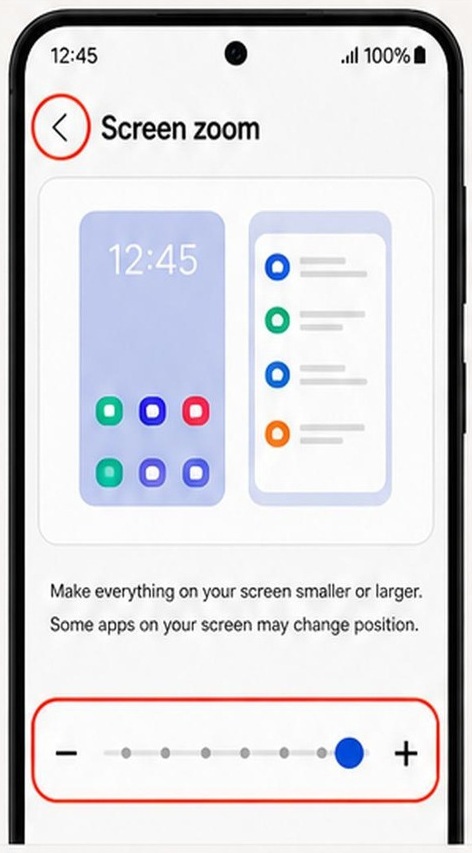
Step 5 of 6: Make buttons bigger, if needed
- If buttons still feel too small, tap Screen zoom in Display settings.
- Move its slider a little towards the larger end.
What to look forCheck whether buttons and other items are easier to see. You can leave this setting alone if they already look comfortable.
My screen looks different
The pictures are examples from the book. Your phone may use a different layout or colour.
This step is optional. A Galaxy Z Fold may call it Screen layout and zoom. Screen zoom changes more than just text.
You can use the guide’s Back button to check the previous step. Take a break if you cannot find the control; you do not have to guess.
How do I come back to this guide?
You can leave this page open while you try the step. Come back to the guide before moving on.
If your phone has three buttons at the bottom: tap the Recent apps button, usually three short lines. Tap the preview of the browser where you opened Plaintech.
If there are no buttons: slide your finger up from the bottom edge and hold for a moment. Lift your finger when the app previews appear, then tap your browser preview.
If switching feels awkward, open this guide on a computer or tablet beside your phone, or print the picture steps.
✓ Step complete. You can practise it again.
 Enlarge picture
Step 6 of 6: Try your usual app
Open an app you use often and read some text.
What to look forKeep the setting if it feels comfortable. You can change it again later.
My screen looks different
The pictures are examples from the book. Your phone may use a different layout or colour.
To change the size again, go to Settings, then Display, then Font size and style. Some apps also have their own text-size setting.
You can use the guide’s Back button to check the previous step. Take a break if you cannot find the control; you do not have to guess.
How do I come back to this guide?
You can leave this page open while you try the step. Come back to the guide before moving on.
If your phone has three buttons at the bottom: tap the Recent apps button, usually three short lines. Tap the preview of the browser where you opened Plaintech.
If there are no buttons: slide your finger up from the bottom edge and hold for a moment. Lift your finger when the app previews appear, then tap your browser preview.
If switching feels awkward, open this guide on a computer or tablet beside your phone, or print the picture steps.
✓ Step complete. You can practise it again.
Enlarge picture
Choose “I’ve done this” after trying the step. Your place is saved.
You’ve finished this guide.
Every step is complete. You can come back and practise again whenever you like.
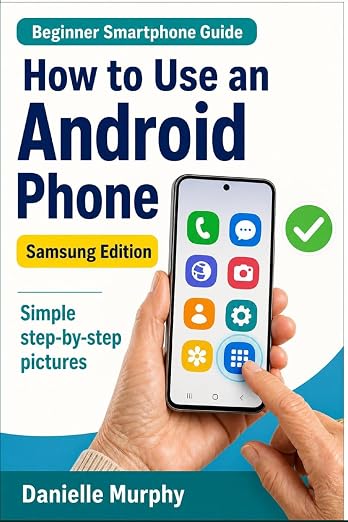
Prefer these instructions on paper?
Keep Danielle Murphy’s picture-led guide beside your phone. It has 100 lessons across 10 sections, with large screenshots and highlighted controls.
See the paperback and sample pagesYour small practice task.
Increase font size one small step and check Settings plus an app you use every day.
Completing the guide records your progress here; it does not check your device settings.
A common question.
Why is a website or picture still hard to read?
Text drawn inside a picture cannot be resized like ordinary app text. Websites and apps can also have their own display controls. Use the app's reading or zoom options when available.
Official help, if you need it.
These links provide the product’s own instructions or relevant public guidance. Settings can differ by model and software version.