Your progress is saved in this browser. There’s no timer.
Before you start
- Unlock your phone and have a few quiet minutes to practise.
- Use an installed app for this exercise; you do not need to download anything.
Follow the pictures, at your own pace.
Read the short instruction and look at the red outline. Try it on your phone. Choose I’ve done this when you are ready to move on. You can go back at any time.
A computer, tablet or printed copy beside your phone can make this easier. If you use the same phone, keep this page open and return to it after each step.
How do I come back to this guide?
You can leave this page open while you try the step. Come back to the guide before moving on.
If your phone has three buttons at the bottom: tap the Recent apps button, usually three short lines. Tap the preview of the browser where you opened Plaintech.
If there are no buttons: slide your finger up from the bottom edge and hold for a moment. Lift your finger when the app previews appear, then tap your browser preview.
If switching feels awkward, open this guide on a computer or tablet beside your phone, or print the picture steps.
6 steps · Your own pace
Find your way around a Samsung phone
Try the steps on your own phone. Red outlines in these book pictures show where to look; your screen may differ.
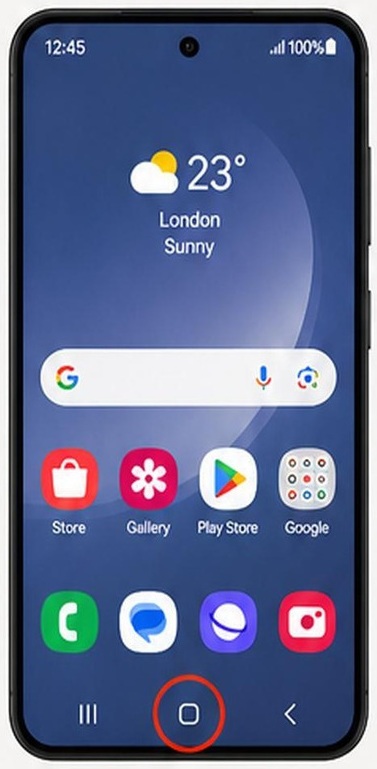
Step 1 of 6: Find Home
Tap the Home button at the bottom of your phone. It is usually the middle button.
What to look forYou should see your Home screen, with your usual app icons.
My screen looks different
The pictures are examples from the book. Your phone may use a different layout or colour.
If there are no buttons at the bottom, slide your finger up from the bottom edge and let go.
You can use the guide’s Back button to check the previous step. Take a break if you cannot find the control; you do not have to guess.
How do I come back to this guide?
You can leave this page open while you try the step. Come back to the guide before moving on.
If your phone has three buttons at the bottom: tap the Recent apps button, usually three short lines. Tap the preview of the browser where you opened Plaintech.
If there are no buttons: slide your finger up from the bottom edge and hold for a moment. Lift your finger when the app previews appear, then tap your browser preview.
If switching feels awkward, open this guide on a computer or tablet beside your phone, or print the picture steps.
✓ Step complete. You can practise it again.
 Enlarge picture
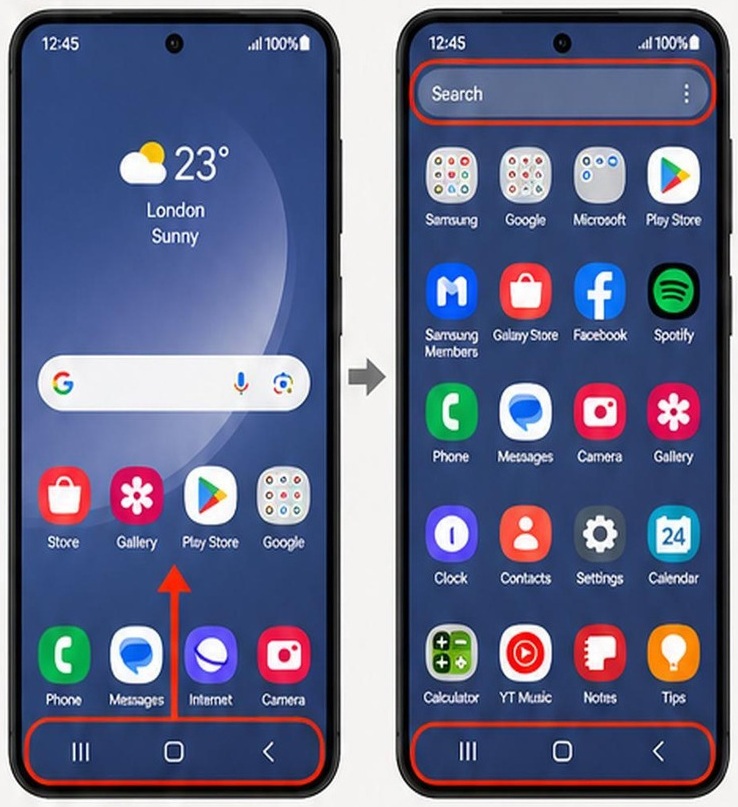
Step 2 of 6: Look for your apps
On an empty part of your Home screen, slide your finger upwards.
What to look forLook for the Apps screen: a list or grid of your installed apps.
My screen looks different
The pictures are examples from the book. Your phone may use a different layout or colour.
If your phone puts all its apps on Home, move between those Home pages instead. The book shows both Home and Apps.
You can use the guide’s Back button to check the previous step. Take a break if you cannot find the control; you do not have to guess.
How do I come back to this guide?
You can leave this page open while you try the step. Come back to the guide before moving on.
If your phone has three buttons at the bottom: tap the Recent apps button, usually three short lines. Tap the preview of the browser where you opened Plaintech.
If there are no buttons: slide your finger up from the bottom edge and hold for a moment. Lift your finger when the app previews appear, then tap your browser preview.
If switching feels awkward, open this guide on a computer or tablet beside your phone, or print the picture steps.
✓ Step complete. You can practise it again.
 Enlarge picture
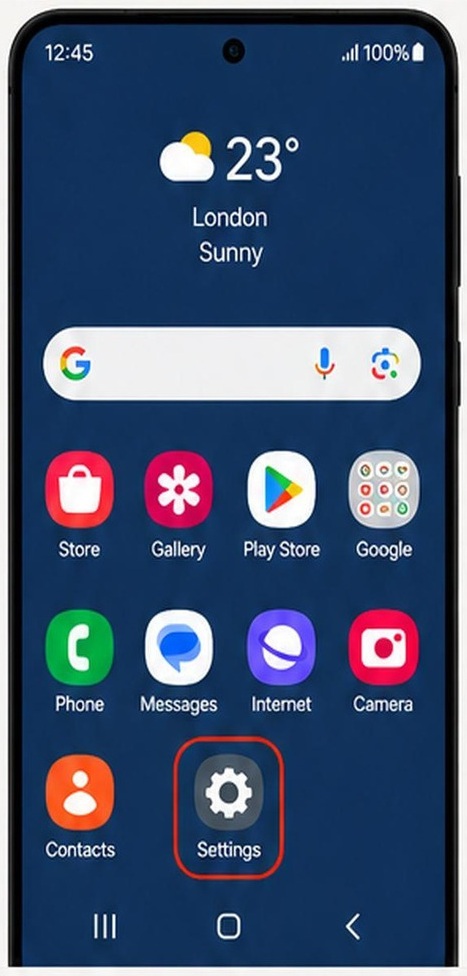
Step 3 of 6: Open Settings
- Find the Settings icon. It looks like a cog.
- Tap it once, then lift your finger.
What to look forYou should see a list of settings.
My screen looks different
The pictures are examples from the book. Your phone may use a different layout or colour.
If a small menu appears, you may have held the icon too long. Close that menu and try a short tap.
You can use the guide’s Back button to check the previous step. Take a break if you cannot find the control; you do not have to guess.
How do I come back to this guide?
You can leave this page open while you try the step. Come back to the guide before moving on.
If your phone has three buttons at the bottom: tap the Recent apps button, usually three short lines. Tap the preview of the browser where you opened Plaintech.
If there are no buttons: slide your finger up from the bottom edge and hold for a moment. Lift your finger when the app previews appear, then tap your browser preview.
If switching feels awkward, open this guide on a computer or tablet beside your phone, or print the picture steps.
✓ Step complete. You can practise it again.
 Enlarge picture
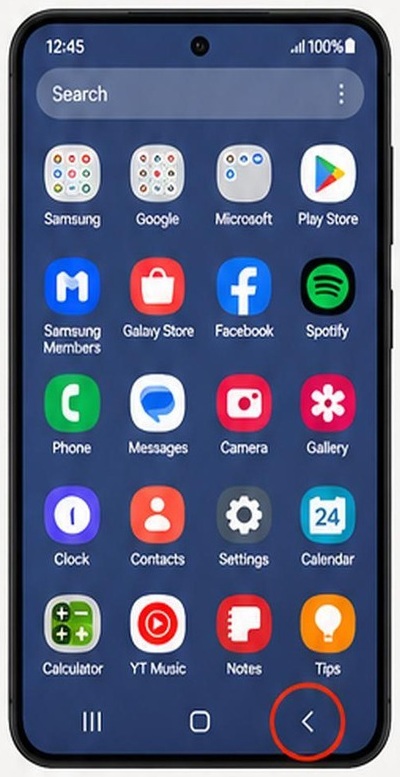
Step 4 of 6: Try Back
- In Settings, tap Display.
- Tap your phone’s Back button to return to the settings list.
What to look forYou should return to the screen you were on before.
My screen looks different
The pictures are examples from the book. Your phone may use a different layout or colour.
Back may be a small arrow at the bottom or near the top. With gesture navigation, slide inward from the left or right edge instead.
You can use the guide’s Back button to check the previous step. Take a break if you cannot find the control; you do not have to guess.
How do I come back to this guide?
You can leave this page open while you try the step. Come back to the guide before moving on.
If your phone has three buttons at the bottom: tap the Recent apps button, usually three short lines. Tap the preview of the browser where you opened Plaintech.
If there are no buttons: slide your finger up from the bottom edge and hold for a moment. Lift your finger when the app previews appear, then tap your browser preview.
If switching feels awkward, open this guide on a computer or tablet beside your phone, or print the picture steps.
✓ Step complete. You can practise it again.
 Enlarge picture
Step 5 of 6: Return Home
Tap Home again.
What to look forYour Home screen should return. Settings is still on your phone.
My screen looks different
The pictures are examples from the book. Your phone may use a different layout or colour.
Without a Home button, slide up from the bottom edge and let go. Leaving an app does not delete it.
You can use the guide’s Back button to check the previous step. Take a break if you cannot find the control; you do not have to guess.
How do I come back to this guide?
You can leave this page open while you try the step. Come back to the guide before moving on.
If your phone has three buttons at the bottom: tap the Recent apps button, usually three short lines. Tap the preview of the browser where you opened Plaintech.
If there are no buttons: slide your finger up from the bottom edge and hold for a moment. Lift your finger when the app previews appear, then tap your browser preview.
If switching feels awkward, open this guide on a computer or tablet beside your phone, or print the picture steps.
✓ Step complete. You can practise it again.
Enlarge picture
Step 6 of 6: Try Recent apps
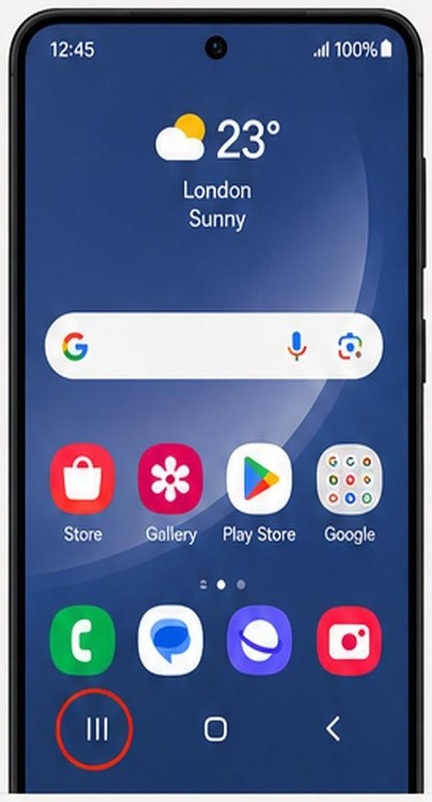
- Tap Recent apps: the button with three short lines at the bottom.
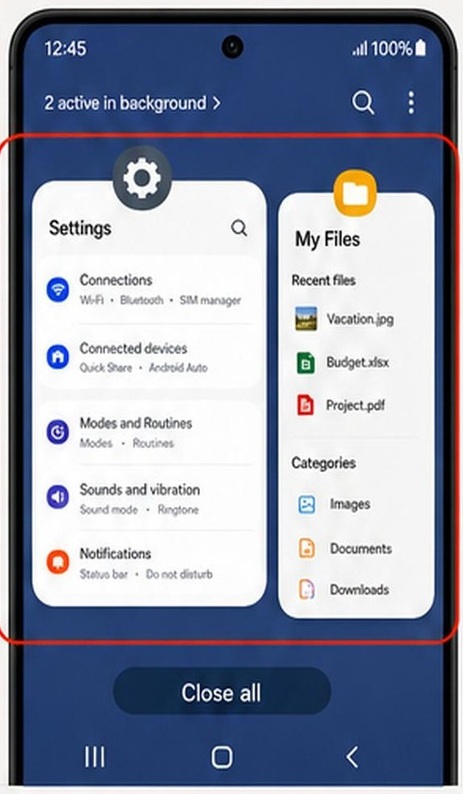
- Tap the Settings preview to return to Settings.
What to look forThe previews show apps you have already opened.
My screen looks different
The pictures are examples from the book. Your phone may use a different layout or colour.
If there are no navigation buttons, slide up from the bottom edge and hold for a moment before lifting your finger. The book’s button position may differ from yours.
You can use the guide’s Back button to check the previous step. Take a break if you cannot find the control; you do not have to guess.
How do I come back to this guide?
You can leave this page open while you try the step. Come back to the guide before moving on.
If your phone has three buttons at the bottom: tap the Recent apps button, usually three short lines. Tap the preview of the browser where you opened Plaintech.
If there are no buttons: slide your finger up from the bottom edge and hold for a moment. Lift your finger when the app previews appear, then tap your browser preview.
If switching feels awkward, open this guide on a computer or tablet beside your phone, or print the picture steps.
✓ Step complete. You can practise it again.
 Enlarge picture
 Enlarge picture
Choose “I’ve done this” after trying the step. Your place is saved.
You’ve finished this guide.
Every step is complete. You can come back and practise again whenever you like.
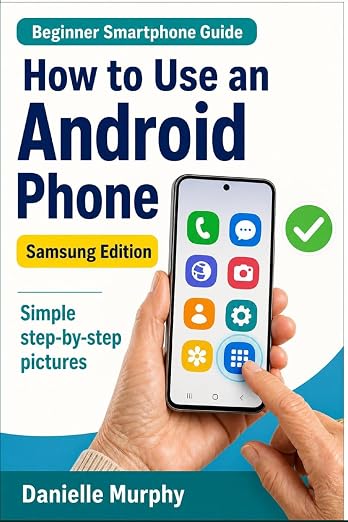
Prefer these instructions on paper?
Keep Danielle Murphy’s picture-led guide beside your phone. It has 100 lessons across 10 sections, with large screenshots and highlighted controls.
See the paperback and sample pagesYour small practice task.
Open Settings, visit Display, go Back, return Home and find Settings in Recent apps.
Completing the guide records your progress here; it does not check your device settings.
A common question.
Can I use buttons instead of gestures?
Usually, yes. Open Settings, Display, Navigation bar and select Buttons if offered. Older gesture styles and customised launchers can work differently; use your exact model's help if these instructions do not match.
Official help, if you need it.
These links provide the product’s own instructions or relevant public guidance. Settings can differ by model and software version.