Your progress is saved in this browser. There’s no timer.
Before you start
- Have an active mobile service, signal and your trusted person's correct telephone number.
- Ask them whether now is a suitable time for a short call; normal plan charges can apply.
Follow the pictures, at your own pace.
Read the short instruction and look at the red outline. Try it on your phone. Choose I’ve done this when you are ready to move on. You can go back at any time.
A computer, tablet or printed copy beside your phone can make this easier. If you use the same phone, keep this page open and return to it after each step.
How do I come back to this guide?
You can leave this page open while you try the step. Come back to the guide before moving on.
If your phone has three buttons at the bottom: tap the Recent apps button, usually three short lines. Tap the preview of the browser where you opened Plaintech.
If there are no buttons: slide your finger up from the bottom edge and hold for a moment. Lift your finger when the app previews appear, then tap your browser preview.
If switching feels awkward, open this guide on a computer or tablet beside your phone, or print the picture steps.
6 steps · Your own pace
Save a contact and call them on Samsung
Try the steps on your own phone. Red outlines in these book pictures show where to look; your screen may differ.
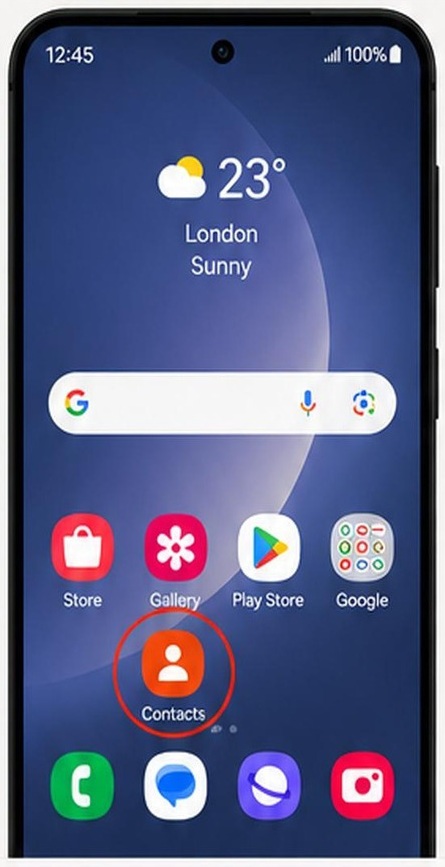
Step 1 of 6: Open Contacts
Tap Contacts. Look for the orange icon with a person on it.
What to look forYou should see your contacts list.
My screen looks different
The pictures are examples from the book. Your phone may use a different layout or colour.
If Contacts is missing from Home, open the Apps screen and search for Contacts. This guide uses Samsung’s installed Contacts app.
You can use the guide’s Back button to check the previous step. Take a break if you cannot find the control; you do not have to guess.
How do I come back to this guide?
You can leave this page open while you try the step. Come back to the guide before moving on.
If your phone has three buttons at the bottom: tap the Recent apps button, usually three short lines. Tap the preview of the browser where you opened Plaintech.
If there are no buttons: slide your finger up from the bottom edge and hold for a moment. Lift your finger when the app previews appear, then tap your browser preview.
If switching feels awkward, open this guide on a computer or tablet beside your phone, or print the picture steps.
✓ Step complete. You can practise it again.
 Enlarge picture
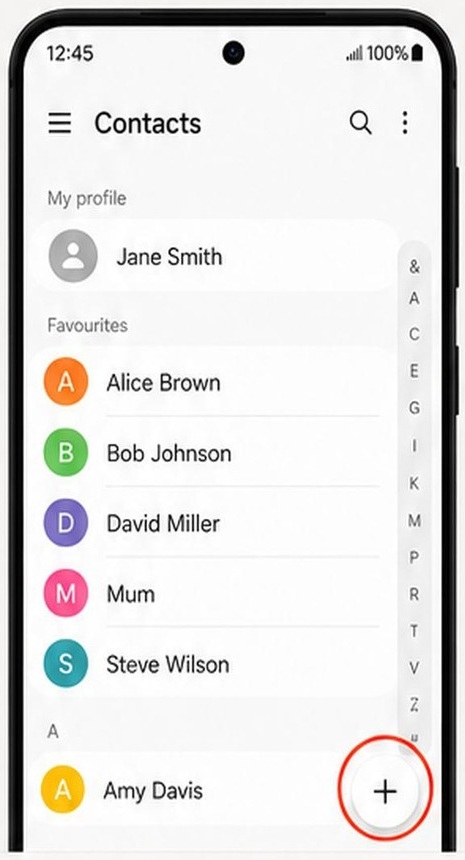
Step 2 of 6: Start a contact
Tap the plus (+) button to add a contact.
What to look forLook for a form where you can enter a name and phone number.
My screen looks different
The pictures are examples from the book. Your phone may use a different layout or colour.
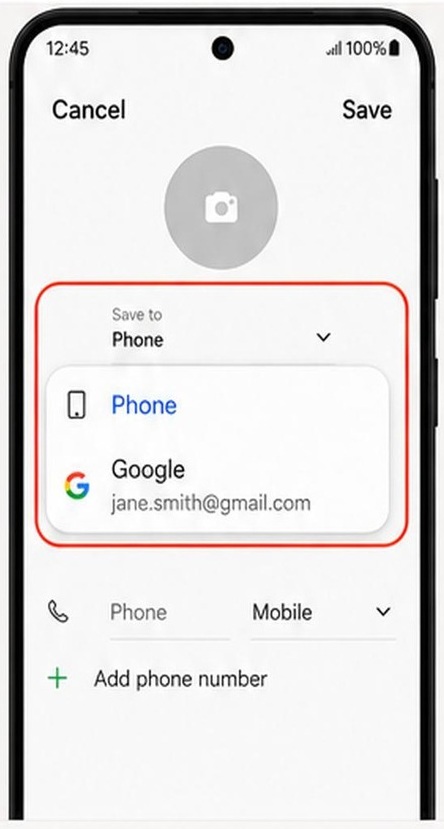
If asked where to save it, choose your usual account or Phone. Remember which one you choose. An account may sync contacts; saving only to the phone is different.
You can use the guide’s Back button to check the previous step. Take a break if you cannot find the control; you do not have to guess.
How do I come back to this guide?
You can leave this page open while you try the step. Come back to the guide before moving on.
If your phone has three buttons at the bottom: tap the Recent apps button, usually three short lines. Tap the preview of the browser where you opened Plaintech.
If there are no buttons: slide your finger up from the bottom edge and hold for a moment. Lift your finger when the app previews appear, then tap your browser preview.
If switching feels awkward, open this guide on a computer or tablet beside your phone, or print the picture steps.
✓ Step complete. You can practise it again.
 Enlarge picture
 Enlarge picture
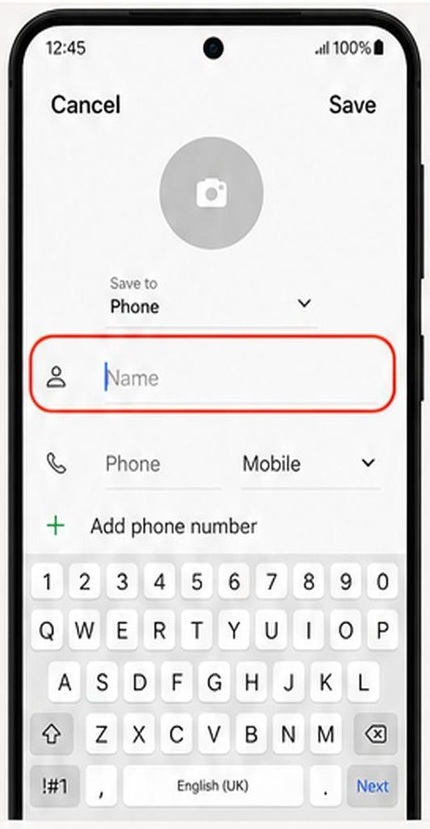
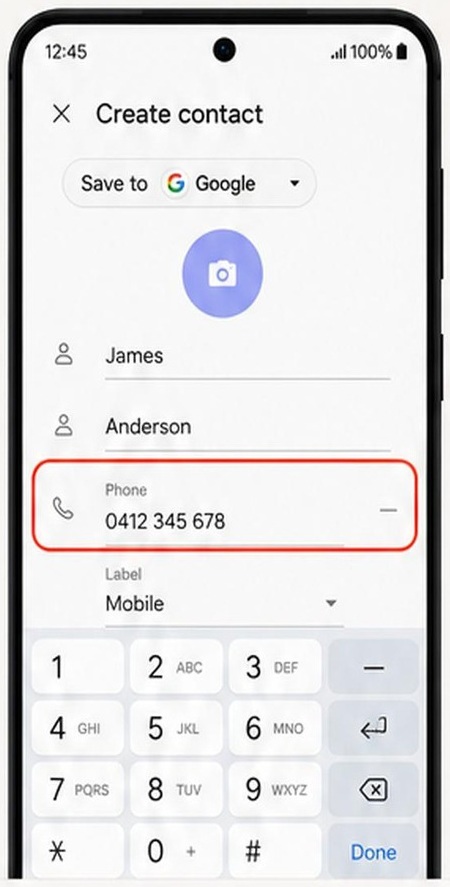
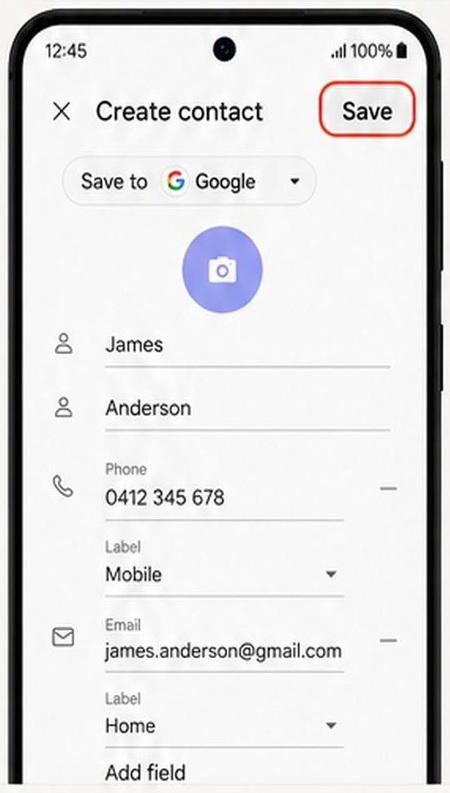
Step 3 of 6: Enter and check the details
- Type the person’s name in Name.
- Type their phone number in Phone. Check every digit.
- Tap Save.
What to look forLook for the saved contact’s name and correct number.
My screen looks different
The pictures are examples from the book. Your phone may use a different layout or colour.
Use the number the person gave you. Names and numbers in the pictures are examples. You can leave optional fields such as an address empty.
You can use the guide’s Back button to check the previous step. Take a break if you cannot find the control; you do not have to guess.
How do I come back to this guide?
You can leave this page open while you try the step. Come back to the guide before moving on.
If your phone has three buttons at the bottom: tap the Recent apps button, usually three short lines. Tap the preview of the browser where you opened Plaintech.
If there are no buttons: slide your finger up from the bottom edge and hold for a moment. Lift your finger when the app previews appear, then tap your browser preview.
If switching feels awkward, open this guide on a computer or tablet beside your phone, or print the picture steps.
✓ Step complete. You can practise it again.
 Enlarge picture
 Enlarge picture
 Enlarge picture
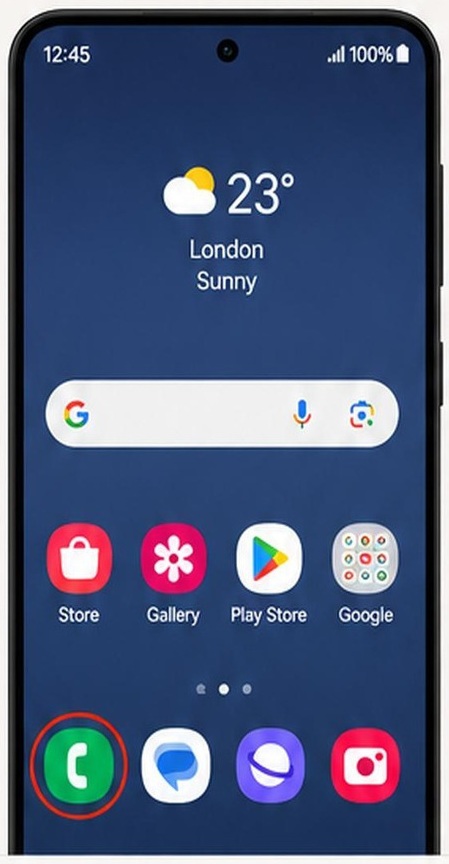
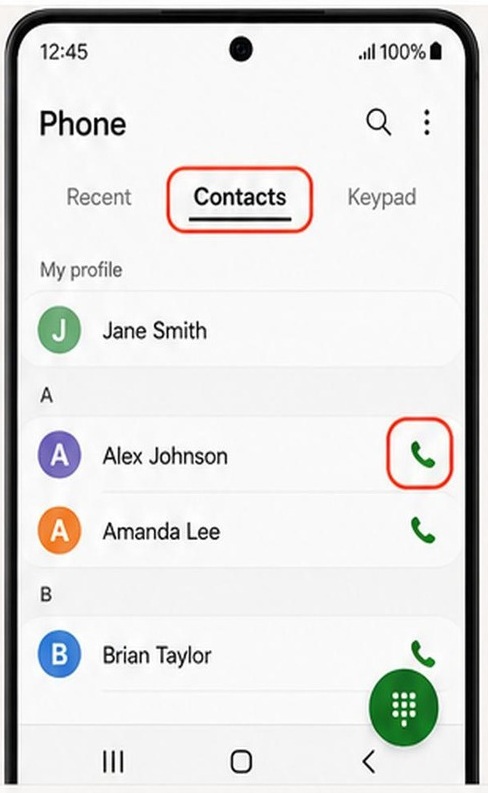
Step 4 of 6: Find them in Phone
- Tap the green Phone icon.
- Tap its Contacts tab and find the person you saved.
What to look forCheck their name and number before calling.
My screen looks different
The pictures are examples from the book. Your phone may use a different layout or colour.
The book outlines both the Contacts tab and an example call icon. If the person has several numbers, choose the one they asked you to use.
You can use the guide’s Back button to check the previous step. Take a break if you cannot find the control; you do not have to guess.
How do I come back to this guide?
You can leave this page open while you try the step. Come back to the guide before moving on.
If your phone has three buttons at the bottom: tap the Recent apps button, usually three short lines. Tap the preview of the browser where you opened Plaintech.
If there are no buttons: slide your finger up from the bottom edge and hold for a moment. Lift your finger when the app previews appear, then tap your browser preview.
If switching feels awkward, open this guide on a computer or tablet beside your phone, or print the picture steps.
✓ Step complete. You can practise it again.
 Enlarge picture
 Enlarge picture
Step 5 of 6: Make your practice call
Tap the small green handset beside the person you want to call.
What to look forYour phone should start the call. Say hello when they answer.
My screen looks different
The pictures are examples from the book. Your phone may use a different layout or colour.
If your phone asks which SIM to use, choose your usual calling line. Make this practice call at the time you agreed with the person. Normal call charges can apply.
You can use the guide’s Back button to check the previous step. Take a break if you cannot find the control; you do not have to guess.
How do I come back to this guide?
You can leave this page open while you try the step. Come back to the guide before moving on.
If your phone has three buttons at the bottom: tap the Recent apps button, usually three short lines. Tap the preview of the browser where you opened Plaintech.
If there are no buttons: slide your finger up from the bottom edge and hold for a moment. Lift your finger when the app previews appear, then tap your browser preview.
If switching feels awkward, open this guide on a computer or tablet beside your phone, or print the picture steps.
✓ Step complete. You can practise it again.
Enlarge picture
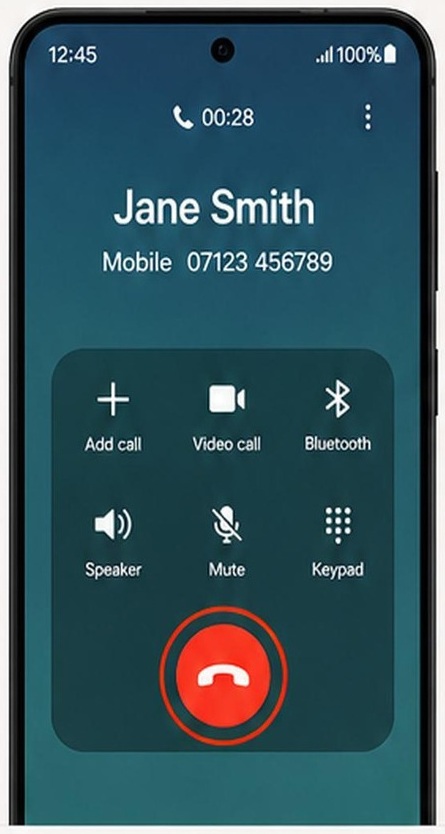
Step 6 of 6: End the call
Tap the red handset to end the call.
What to look forThe call screen should close or show that the call has ended.
My screen looks different
The pictures are examples from the book. Your phone may use a different layout or colour.
You can find the person again in Contacts. If their number needs correcting, open the contact, choose Edit, correct it and tap Save.
You can use the guide’s Back button to check the previous step. Take a break if you cannot find the control; you do not have to guess.
How do I come back to this guide?
You can leave this page open while you try the step. Come back to the guide before moving on.
If your phone has three buttons at the bottom: tap the Recent apps button, usually three short lines. Tap the preview of the browser where you opened Plaintech.
If there are no buttons: slide your finger up from the bottom edge and hold for a moment. Lift your finger when the app previews appear, then tap your browser preview.
If switching feels awkward, open this guide on a computer or tablet beside your phone, or print the picture steps.
✓ Step complete. You can practise it again.
 Enlarge picture
Choose “I’ve done this” after trying the step. Your place is saved.
You’ve finished this guide.
Every step is complete. You can come back and practise again whenever you like.
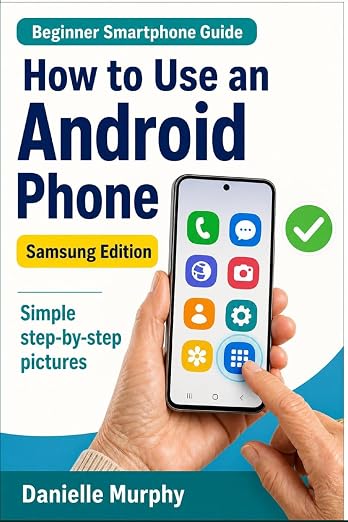
Prefer these instructions on paper?
Keep Danielle Murphy’s picture-led guide beside your phone. It has 100 lessons across 10 sections, with large screenshots and highlighted controls.
See the paperback and sample pagesYour small practice task.
Save one trusted contact, call them at an agreed time and end the call yourself.
Completing the guide records your progress here; it does not check your device settings.
A common question.
Is a contact saved on the phone automatically backed up?
No. The storage choice matters. A contact saved only to the phone is different from one saved in an account with contact synchronisation enabled. Check your account's backup settings separately.
Official help, if you need it.
These links provide the product’s own instructions or relevant public guidance. Settings can differ by model and software version.