Your progress is saved in this browser.
Before you start
- Unlock your phone that is already set up. Choose something harmless to photograph.
- Have a messaging or email app you use, a trusted recipient and internet access.
Follow the pictures.
Try the step, then choose I’ve done this. You can go back or pause.
A second screen or printed copy can help. Keep this page open and return after each step.
How do I return to the guide?
Leave this page open while you try the step.
If your phone has three buttons at the bottom: tap Recent apps (usually three short lines), then tap your browser preview.
If there are no buttons: slide your finger up from the bottom edge and hold until app previews appear. Lift your finger, then tap your browser preview.
You can also use a computer, tablet or printed copy beside your phone.
6 steps
Take and share a photo on a Samsung phone
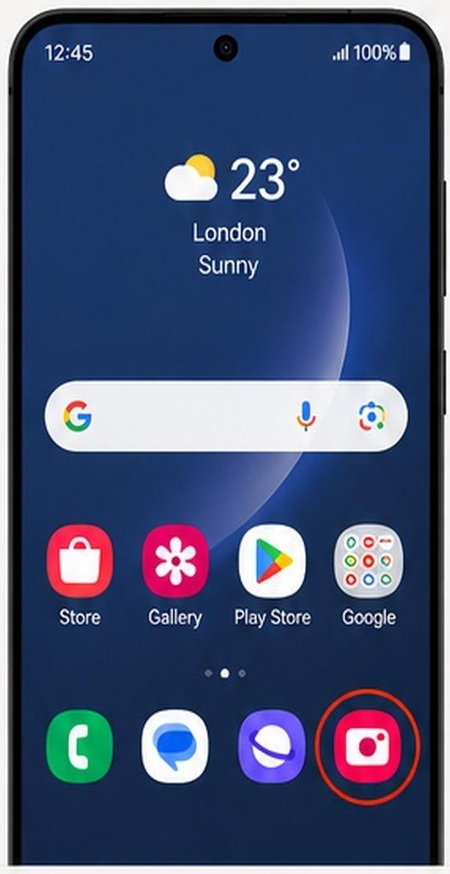
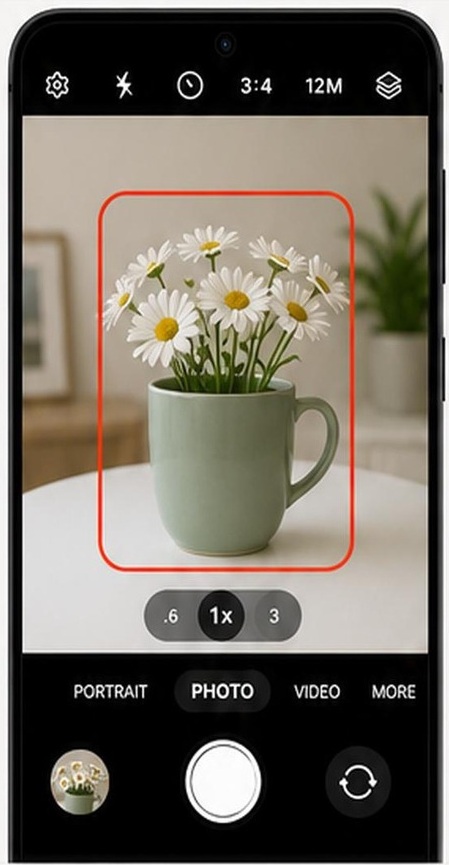
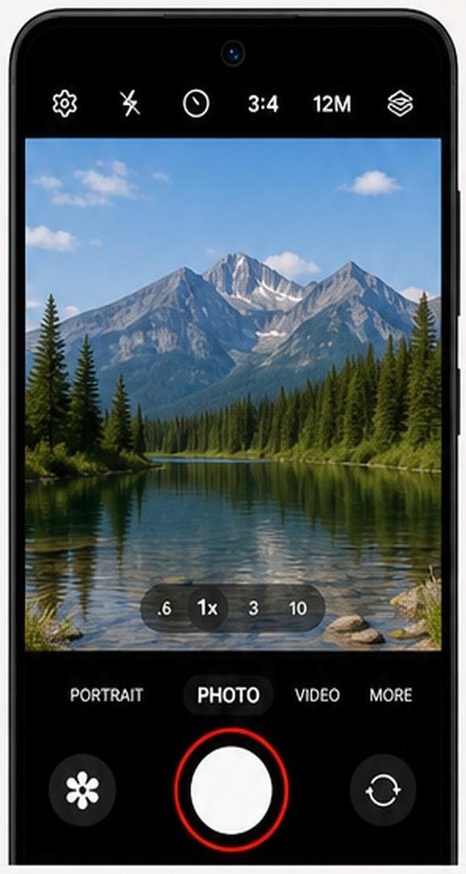
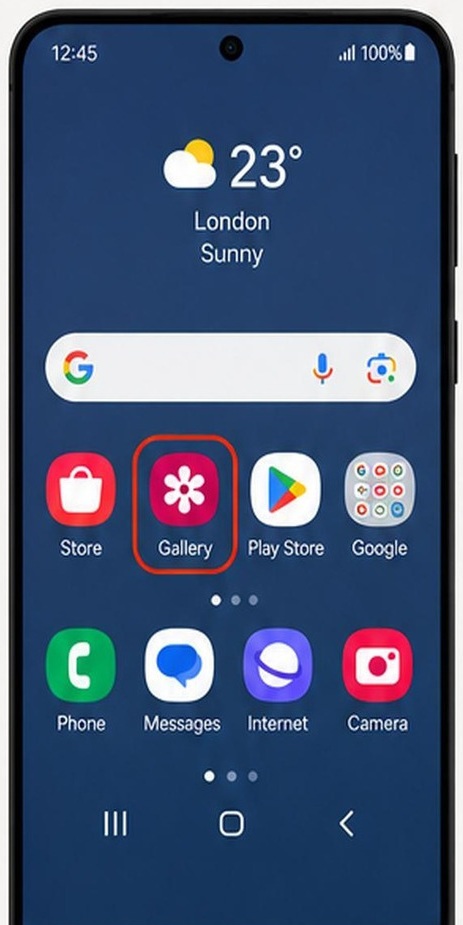
Red outlines show where to look. Your screen may differ.
Step 1 of 6: Open Camera
Tap Camera.
What to look forYou should see a live view of what your camera is pointing at.
My screen looks different
Your phone’s layout or colours may differ.
Choose Photo if the camera opens in another mode. If you see yourself, tap the camera-switch symbol to use the other camera.
Use Back to check the previous step. Pause if you cannot find the control.
How do I return to the guide?
Leave this page open while you try the step.
If your phone has three buttons at the bottom: tap Recent apps (usually three short lines), then tap your browser preview.
If there are no buttons: slide your finger up from the bottom edge and hold until app previews appear. Lift your finger, then tap your browser preview.
You can also use a computer, tablet or printed copy beside your phone.
✓ Step complete.
 Enlarge picture
Step 2 of 6: Frame a simple picture
Hold the phone steady and point it at a simple object, such as a mug.
What to look forKeep the object inside the picture you see on the screen.
My screen looks different
Your phone’s layout or colours may differ.
Check the background too. Avoid including letters, addresses or anything you do not want to share.
Use Back to check the previous step. Pause if you cannot find the control.
How do I return to the guide?
Leave this page open while you try the step.
If your phone has three buttons at the bottom: tap Recent apps (usually three short lines), then tap your browser preview.
If there are no buttons: slide your finger up from the bottom edge and hold until app previews appear. Lift your finger, then tap your browser preview.
You can also use a computer, tablet or printed copy beside your phone.
✓ Step complete.
 Enlarge picture
Step 3 of 6: Take one photo
Tap the large circle once to take a photo.
What to look forPause for a moment while the phone saves your photo.
My screen looks different
Your phone’s layout or colours may differ.
The shutter button’s colour can vary. The landscape shown in the book is an example.
Use Back to check the previous step. Pause if you cannot find the control.
How do I return to the guide?
Leave this page open while you try the step.
If your phone has three buttons at the bottom: tap Recent apps (usually three short lines), then tap your browser preview.
If there are no buttons: slide your finger up from the bottom edge and hold until app previews appear. Lift your finger, then tap your browser preview.
You can also use a computer, tablet or printed copy beside your phone.
✓ Step complete.
 Enlarge picture
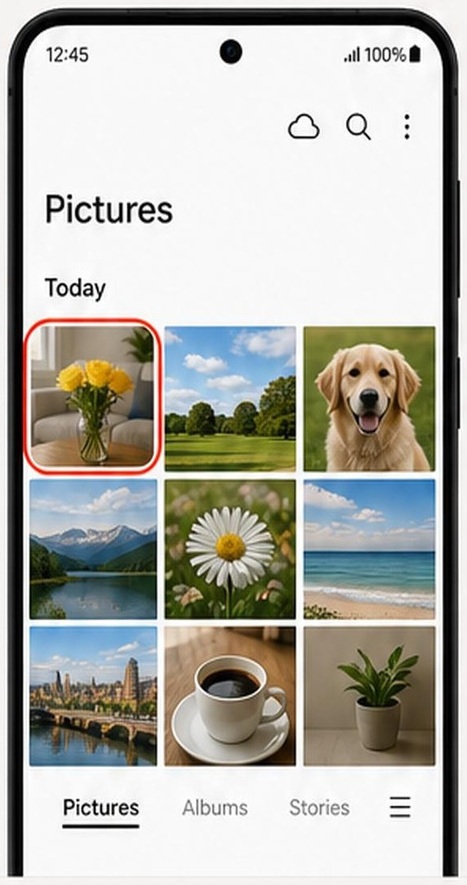
Step 4 of 6: Find it in Gallery
- Return Home and tap Gallery.
- Find the photo you just took and tap it.
What to look forYou should see your photo on the screen.
My screen looks different
Your phone’s layout or colours may differ.
Look in Pictures or the Camera album. If it is blurred, you can return to Camera and try again.
Use Back to check the previous step. Pause if you cannot find the control.
How do I return to the guide?
Leave this page open while you try the step.
If your phone has three buttons at the bottom: tap Recent apps (usually three short lines), then tap your browser preview.
If there are no buttons: slide your finger up from the bottom edge and hold until app previews appear. Lift your finger, then tap your browser preview.
You can also use a computer, tablet or printed copy beside your phone.
✓ Step complete.
 Enlarge picture
 Enlarge picture
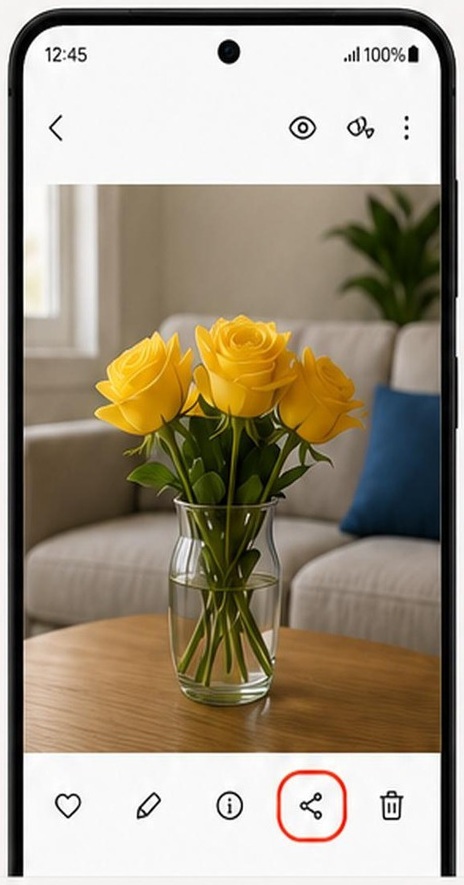
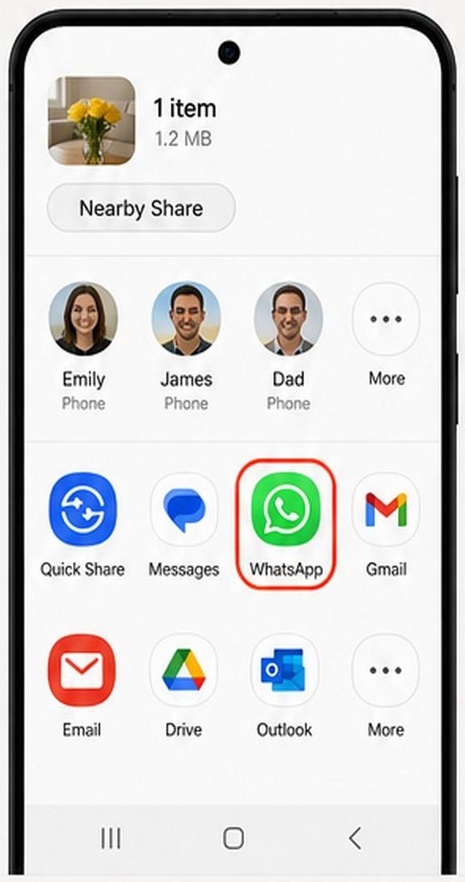
Step 5 of 6: Choose how to share
- With your photo open, tap Share.
- Choose a messaging or email app you already use.
What to look forYour chosen app should open so you can choose who receives the photo.
My screen looks different
Your phone’s layout or colours may differ.
The book shows WhatsApp as an example. Use your familiar installed app. Choose a private message or email if you only want one person to see the photo.
Use Back to check the previous step. Pause if you cannot find the control.
How do I return to the guide?
Leave this page open while you try the step.
If your phone has three buttons at the bottom: tap Recent apps (usually three short lines), then tap your browser preview.
If there are no buttons: slide your finger up from the bottom edge and hold until app previews appear. Lift your finger, then tap your browser preview.
You can also use a computer, tablet or printed copy beside your phone.
✓ Step complete.
 Enlarge picture
 Enlarge picture
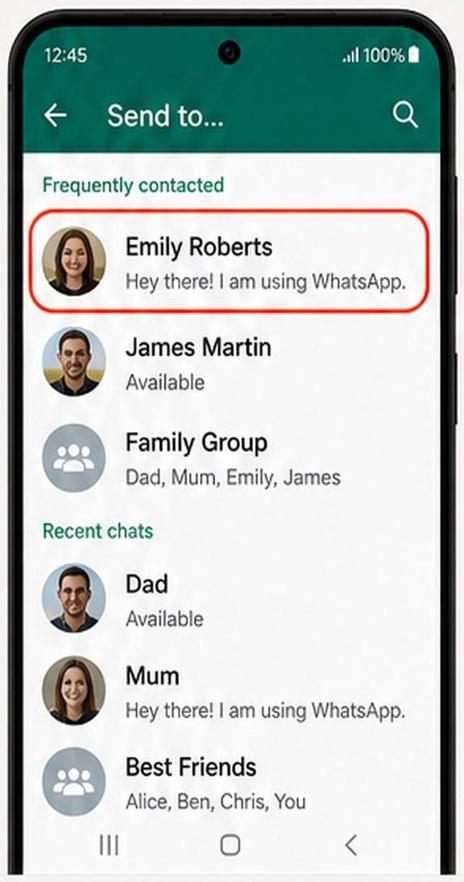
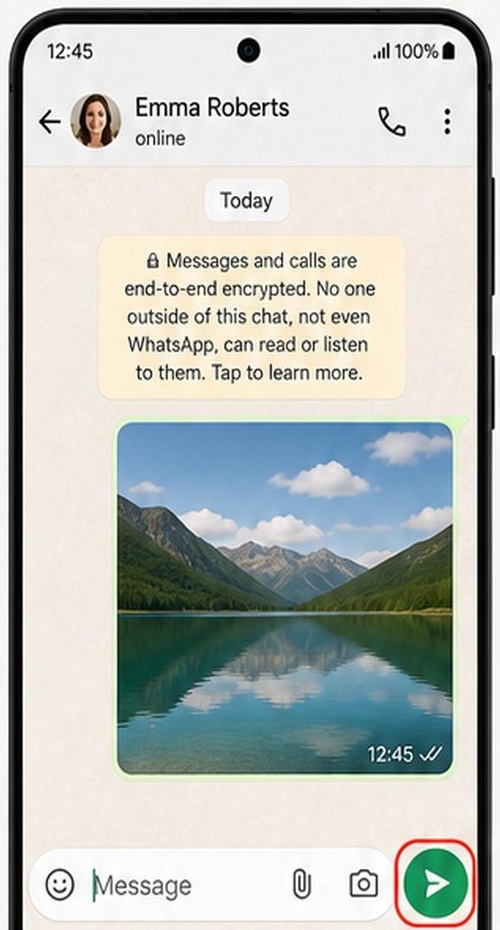
Step 6 of 6: Check the recipient and send
- Choose the person you want to send it to.
- Check their name and the attached photo.
- Tap Send.
What to look forAsk the person to confirm they received your photo.
My screen looks different
Your phone’s layout or colours may differ.
The next screens depend on your app. The book shows WhatsApp. Message charges may apply, depending on your app and mobile plan.
Use Back to check the previous step. Pause if you cannot find the control.
How do I return to the guide?
Leave this page open while you try the step.
If your phone has three buttons at the bottom: tap Recent apps (usually three short lines), then tap your browser preview.
If there are no buttons: slide your finger up from the bottom edge and hold until app previews appear. Lift your finger, then tap your browser preview.
You can also use a computer, tablet or printed copy beside your phone.
✓ Step complete.
 Enlarge picture
 Enlarge picture
Choose “I’ve done this” after trying the step.
You’ve finished this guide.
You can practise again anytime.
Prefer these instructions on paper?
100 lessons in 10 sections, with large screenshots and highlighted controls.
See book and sample pagesPractice task
Photograph a harmless object and send that single image to one trusted person.
Marking steps done saves progress; it does not check your device.
Questions
Must I use Quick Share?
No. Gallery's Share menu can offer several installed apps. Choose the messaging or email app you already know. The next screens depend on that app, so follow its instructions if they differ.
Official help
Menus vary by model and software version.