Your progress is saved in this browser.
Before you start
- An unlocked phone
- An app you can open for practice
Follow one step at a time.
Try the step, then choose Done — next step. You can go back or pause.
5 steps
Find Home, Back and your open apps
Step 1 of 5: Identify your navigation style
Look at the bottom edge. Android may show Home, Back and Recents buttons, or use swipes instead. Some iPhones have a round physical Home button. Other iPhones use a swipe from the bottom edge.
✓ Step complete.
Step 2 of 5: Return Home
Open Clock. iPhone with Home button: press it once. iPhone without Home button: swipe up from the bottom. Android: tap its Home button or swipe up from the bottom in gesture mode. Your main screen should appear.
✓ Step complete.
Step 3 of 5: Go back one step
Android: tap Back, or swipe inward from a screen edge when gesture navigation is enabled. iPhone: use the app’s back arrow, usually near the top left; many apps also allow a swipe from the left edge.
✓ Step complete.
Step 4 of 5: See recently used apps
iPhone with Home button: press it twice. Gesture-based iPhone or Android: swipe up from the bottom and pause. Android with buttons: tap Recents. You should see cards representing apps, not a list of installed software.
✓ Step complete.
Step 5 of 5: Switch and lock
Tap an app card to return to it, then practise Home again. Briefly press the side or power button to lock the screen. If a gesture is difficult, use the accessibility options described in your device manual.
✓ Step complete.
Next marks this step done.
You’ve finished this guide.
You can practise again anytime.
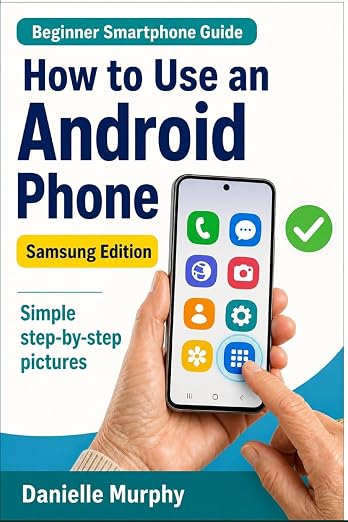
Prefer these instructions on paper?
100 lessons in 10 sections, with large screenshots and highlighted controls.
See book and sample pagesPractice task
Open one app, return Home, then find it in the app switcher.
Marking steps done saves progress; it does not check your device.
Questions
Does going Home delete my work?
Usually it leaves the app available. Save important work inside the app; unfinished forms and some games may not keep every change.
Official help
Menus vary by model and software version.