Your progress is saved in this browser.
Before you start
- An unlocked phone
- An app already installed
- A clear space on the Home Screen
Follow one step at a time.
Try the step, then choose Done — next step. You can go back or pause.
5 steps
Put a useful app on your Home Screen
Step 1 of 5: Find the installed app
iPhone: swipe past your Home pages to App Library and search if needed. Android: open the app list, often by swiping up from Home. The app can remain installed without a Home shortcut.
✓ Step complete.
Step 2 of 5: Add it to Home
iPhone: touch and hold the App Library icon and choose Add to Home Screen if offered, or drag it towards Home. Android: touch and drag the icon from the app list onto a Home page. Phone launchers differ.
✓ Step complete.
Step 3 of 5: Choose a clear position
Keep holding as you move the icon, then lift your finger over an empty spot. On iPhone, finish editing with Done or the relevant Home action. Avoid the Delete or Uninstall option when you only mean to move it.
✓ Step complete.
Step 4 of 5: Test the shortcut
Return Home and tap the icon once. The correct app should open. Go Home again and check you can recognise its label and position. If you added a duplicate shortcut, check which copy you want to keep.
✓ Step complete.
Step 5 of 5: Group only if it helps
Dragging one app onto another can create a folder on many phones. Give it a short name such as Travel. If folders make finding things harder, keep a few important apps visible instead of filling every screen.
✓ Step complete.
Next marks this step done.
You’ve finished this guide.
You can practise again anytime.
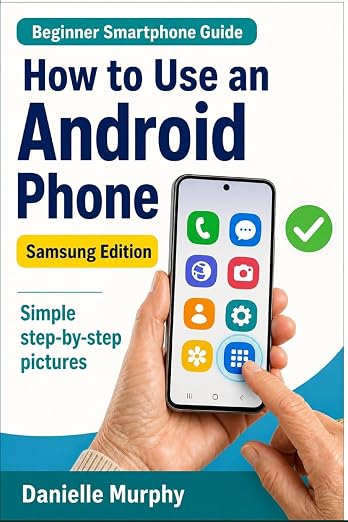
Prefer these instructions on paper?
100 lessons in 10 sections, with large screenshots and highlighted controls.
See book and sample pagesPractice task
Place one useful app where you can find it and open it from that spot.
Marking steps done saves progress; it does not check your device.
Questions
Does removing an icon delete the app?
Remove from Home usually removes only the shortcut. Delete App or Uninstall removes the app; read the confirmation before proceeding.
Official help
Menus vary by model and software version.