Your progress is saved in this browser.
Before you start
- An unlocked phone
- A familiar app
- A backup of important app data before removal
Follow one step at a time.
Try the step, then choose Done — next step. You can go back or pause.
5 steps
Leave, close or remove a phone app
Step 1 of 5: Leave an app normally
Use your phone’s Home button or swipe to return Home. This leaves the app available for later. You do not need to swipe away every app after each use; phones manage background activity themselves.
✓ Step complete.
Step 2 of 5: Open recent apps if it is stuck
iPhone with Home button: double-press Home. iPhone without it: swipe up from the bottom and pause. Android: use Recents or the corresponding swipe-and-pause gesture. Look for the card showing the unresponsive app.
✓ Step complete.
Step 3 of 5: Close only the affected app
Swipe the app’s card away, usually upwards, then reopen it from its icon. Unsaved work may be lost. If it repeatedly freezes, update the app and check the publisher’s help before deleting or clearing its stored data.
✓ Step complete.
Step 4 of 5: Check before uninstalling
Find whether files, notes or game progress are stored only in the app. Export or back up anything important. Check ongoing subscriptions separately; removing an app does not automatically stop a charge or delete its online account.
✓ Step complete.
Step 5 of 5: Remove it only if intended
iPhone: touch and hold the icon, choose Remove App, then Delete App if you mean to uninstall. Android: use App info and Uninstall, or the store’s uninstall control. Remove from Home may only hide the shortcut.
✓ Step complete.
Next marks this step done.
You’ve finished this guide.
You can practise again anytime.
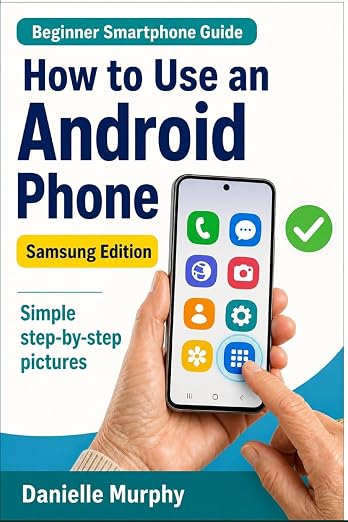
Prefer these instructions on paper?
100 lessons in 10 sections, with large screenshots and highlighted controls.
See book and sample pagesPractice task
Practise leaving and reopening Clock; do not uninstall it.
Marking steps done saves progress; it does not check your device.
Questions
Can every built-in app be deleted?
No. Some can only be hidden or disabled, and available choices vary by device. Avoid disabling a system app you do not recognise.
Official help
Menus vary by model and software version.