Your progress is saved in this browser.
Before you start
- A charged phone
- Your own unlock code, if one is set
- A quiet place to practise
Follow one step at a time.
Try the step, then choose Done — next step. You can go back or pause.
5 steps
Start using your phone
Step 1 of 5: Wake or turn on the screen
Briefly press the side or power button to wake the screen. If the phone is switched off, hold its power button until the startup logo appears. Button positions vary; check the model manual if nothing happens.
✓ Step complete.
Step 2 of 5: Unlock your own phone
Follow the screen prompt and enter your own PIN or passcode. Fingerprint or face recognition may also work. If you cannot remember the code, stop and use the manufacturer’s recovery help; repeated guesses can lock you out.
✓ Step complete.
Step 3 of 5: Open one familiar app
Find Clock or Settings and tap its picture once. Give it a moment to open. Swipe a finger gently up the screen to move down a list; touching and holding can bring up a different menu.
✓ Step complete.
Step 4 of 5: Return to the starting screen
iPhone with Home button: press Home. iPhone without it: swipe up from the bottom edge. Android: tap Home if there are navigation buttons, or swipe up from the bottom if gestures are enabled.
✓ Step complete.
Step 5 of 5: Finish the practice session
Press the side or power button briefly to lock the screen. Locking is different from switching off. When practising, pause before deleting items, buying anything or granting access you do not understand.
✓ Step complete.
Next marks this step done.
You’ve finished this guide.
You can practise again anytime.
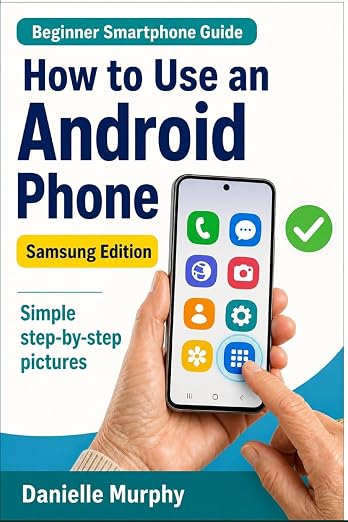
Prefer these instructions on paper?
100 lessons in 10 sections, with large screenshots and highlighted controls.
See book and sample pagesPractice task
Open Clock, return Home, then lock and unlock the screen once.
Marking steps done saves progress; it does not check your device.
Questions
Does this guide set up a new phone?
No. Initial setup screens vary by model and account. Complete the manufacturer’s setup instructions first, then return for practice.
Official help
Menus vary by model and software version.