
Your progress is saved in this browser.
Before you start
- Connect to Wi-Fi and use a PIN, pattern, or password screen lock.
- Menu names vary by phone manufacturer and Android version.
Follow one step at a time.
Try the step, then choose Done — next step. You can go back or pause.
5 steps
How to back up an Android phone
Step 1 of 5: Open Google settings
Open your phone's Settings, then Google, then All services.
✓ Step complete.
Step 2 of 5: Find Backup
Under Backup and restore, open Backup.
✓ Step complete.
Step 3 of 5: Check your account
Confirm the Google Account being used. If prompted, enable Backup by Google One and follow setup.
✓ Step complete.
Step 4 of 5: Start a backup
Tap Back up now. Keep the phone connected while it backs up.
✓ Step complete.
Step 5 of 5: Review what was included
Check Backup details for included data and apps. Check Google Photos separately for photo and video backup.
✓ Step complete.
Next marks this step done.
You’ve finished this guide.
You can practise again anytime.
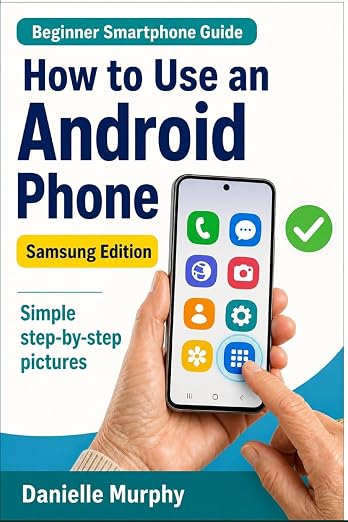
Prefer these instructions on paper?
100 lessons in 10 sections, with large screenshots and highlighted controls.
See book and sample pagesPractice task
Try the task with something you can safely change. Stop if asked to erase data or spend money.
Marking steps done saves progress; it does not check your device.
Questions
Does backup include every app's data?
No. Not all apps back up or restore all their settings and data.
Can I restore onto an older Android version?
Use the same or a newer Android version. A newer-version backup cannot be restored to an older version.
Official help
Menus vary by model and software version.